
Multi-Source Imports
Combine multiple data files into a single unified catalog within one Product Flow.
This guide explains how to configure a Multi-Source Import (Master Import) and its connected Sub-Imports, manage individual schedules, and write targeted transformation rules and apply transformation rules to specific files or categories..
Table of Contents
- Overview: What is a Multi-Source Import?
- Master Import vs. Sub-Imports
- Step-by-Step Setup
- Managing Sub-Imports & Alerts
- Using Multi-Source Data in Mapping and Filters
- Consolidated Detailed History
- Quick Answers to Common Issues
- Related Articles
Overview: What is a Multi-Source Import?
Instead of creating dozens of separate product flows for different product categories, regional files, or marketplace stocks, a Multi-Source Import groups multiple independent files into a single master catalog.
- Fewer Flows to Maintain: Consolidate up to 80+ separate files into one unified workspace.
- Independent File Ingestion: Each file is fetched on its own schedule without blocking others.
- Unified Pipeline: All products flow together through the same mapping, filtering, and export channels.
When to Use (and When NOT to Use)
Use this import if:
- You have multiple product files: For example, separate catalogs for Clothing, Shoes, and Accessories.
- You want to stack rows (Union): Combining product lists vertically: 100 products (File A) + 50 products (File B) = 150 total products in your master catalog.
Do NOT use this import if:
- You want to add columns (Join): For example, enriching File A prices with stock levels or margins from File B. Use a standard Join block instead.
- Your files are completely unrelated: If files require completely different channel rules, separate business logic, or need to be exported to different platforms, keep them in distinct Product Flows.
Master Import vs. Sub-Imports
| Level | Role | Configurable Settings |
| Master Import | The consolidated parent catalog (empty container) used across the rest of the flow. | Title, Global Refresh, Consolidated Detailed History, Exploration table. |
| Sub-Import | An individual file source attached to the Master. | Source connection (FTP/SFTP, HTTP/URL, Google Sheets, BigQuery, Snowflake), File format, Fetch Frequency, Alerts, and Aggregation. |
Note: The Master Import does not have its own connection URL. It automatically unions the data rows from all its active Sub-Imports.
Step-by-Step Setup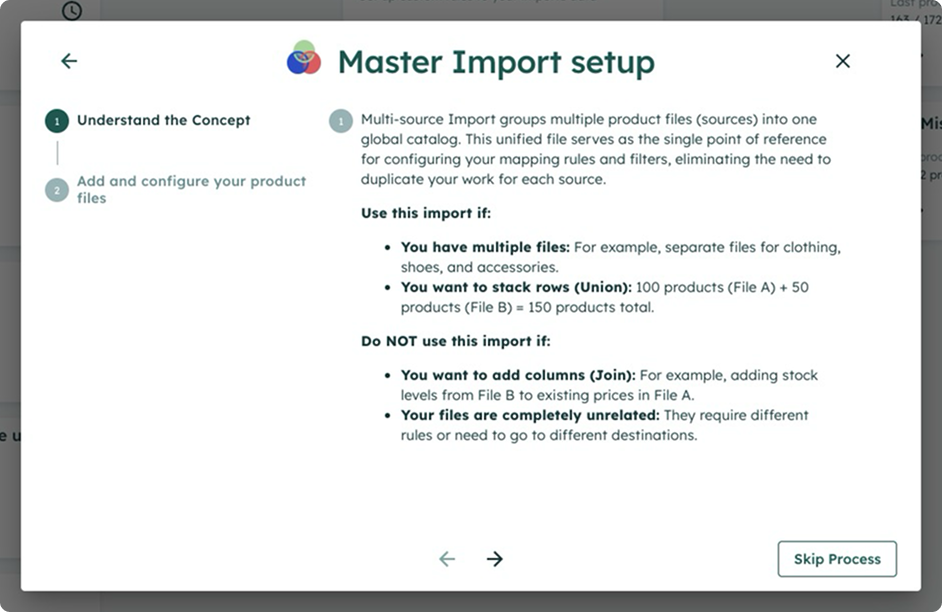
Step 1: Create the Master Import (The Container)
- In ProductFlow, click + New Data Source.
- Select Multi-Source Import.
- Enter a clear title (e.g., Catalog Global Consolidated) and save.
- Think of this Master Import as an empty container ready to receive your product files.
Step 2: Add and Configure Sub-Imports
- Open your newly created Master Import card.
- Under the Sub-Imports tab, click + Add Sub-Import (or + New Data source).
- Configure the sub-source like a standard import:
- Source Type: Select your source (Google Sheets, SFTP, FTP, HTTP URL, BigQuery, Snowflake).
- Name: Give each sub-import a clear name (e.g., Clothing, Shoes). This name is automatically used in the
smartfeeds_import_nameattribute for your mapping rules. - File Settings: Choose delimiter, compression (Gzip/Zip), or XML tags.
- Fetch Frequency: Choose when this specific file refreshes (e.g., daily at 06:00 or every 2 hours).
- Alerts: Set custom thresholds for unchanged files or size variations.
- Detailed History: Detailed History cannot be toggled per sub-import. It is managed globally at the Master Import level (see Section 6).
- Save the sub-import. Repeat this step for each file in your catalog.
Essential Tips for Columns and Product IDs
- Keep column names identical: For optimal results, column names should be identical across all files (e.g., use
titleeverywhere, notproduct_namein File A andproduct_titlein File B). - Missing columns are set to null: If a column exists in File A but not in File B, products from File B simply receive an empty (
null) value for that attribute without breaking the import. - Handle duplicates with Deduplication: If the same product ID exists in multiple files, both rows will enter the flow. To eliminate duplicates across files, use the Deduplication feature in the Join settings (see our Deduplication guide).
Managing Sub-Imports & Alerts
The Master Import page features a dedicated management table:
- Row-by-Row Alerts: Warnings such as Unchanged File or Blocked Import appear directly on the line of the affected sub-import.
- Quick Navigation: Click the Master name in the header of any sub-import to return to the parent view.
- Manual Refresh:
- Clicking the refresh icon on a Sub-Import updates only that specific file.
- Clicking the refresh icon on the Master Import card triggers an update across all attached Sub-Imports simultaneously.
Using Multi-Source Data in Mapping and Filters
In your Mapping, Rules, and Filters canvas, only the Master Import appears as a selectable data source.
Targeting Specific Files (smartfeeds_import_name)
SmartFeeds automatically appends a system column named smartfeeds_import_name to every row. This column contains the name of the sub-import the product came from.
Example: If you import Electronics_FR and Books_FR under the same Master, you can create a rule:
IF smartfeeds_import_name contains'Books_FR'
THEN apply_book_margin()
Consolidated Detailed History
Detailed History is configured and activated strictly at the Master Import level for all sub-imports combined. It cannot be enabled or disabled individually for each sub-import.
- The Detailed History tab on the Master Import displays total added, modified, and deleted products summed across all files.
- Use the Sub-Import filter dropdown to isolate and audit the history of a single sub-source.
Quick Answers to Common Issues
What happens if two Sub-Imports share the same product ID?
Data rows are unioned. If the exact same ID exists in two different files, both entries enter the flow. To avoid duplicates, use the Deduplication block in your flow or prefix your IDs with smartfeeds_import_name.
Can I link an existing standard import to a Master Import?
No. Existing single imports cannot be converted into sub-imports. You must create the sub-import inside the Master and copy the connection details.
Why don't my Sub-Imports appear in the Mapping dropdown?
By design, only the Master Import is exposed to formulas and channel mapping to maintain a single unified schema. Use smartfeeds_import_name to differentiate products when needed.
Can I activate Detailed History on only one Sub-Import?
No. Detailed History is activated at the Master Import level and tracks changes across all attached sub-imports at once. You can filter the history log by sub-import name to inspect a specific file.
Related Articles
For further assistance with SmartFeeds, consider reviewing these articles:
For additional help, feel free to reach out via our Contact Us page.